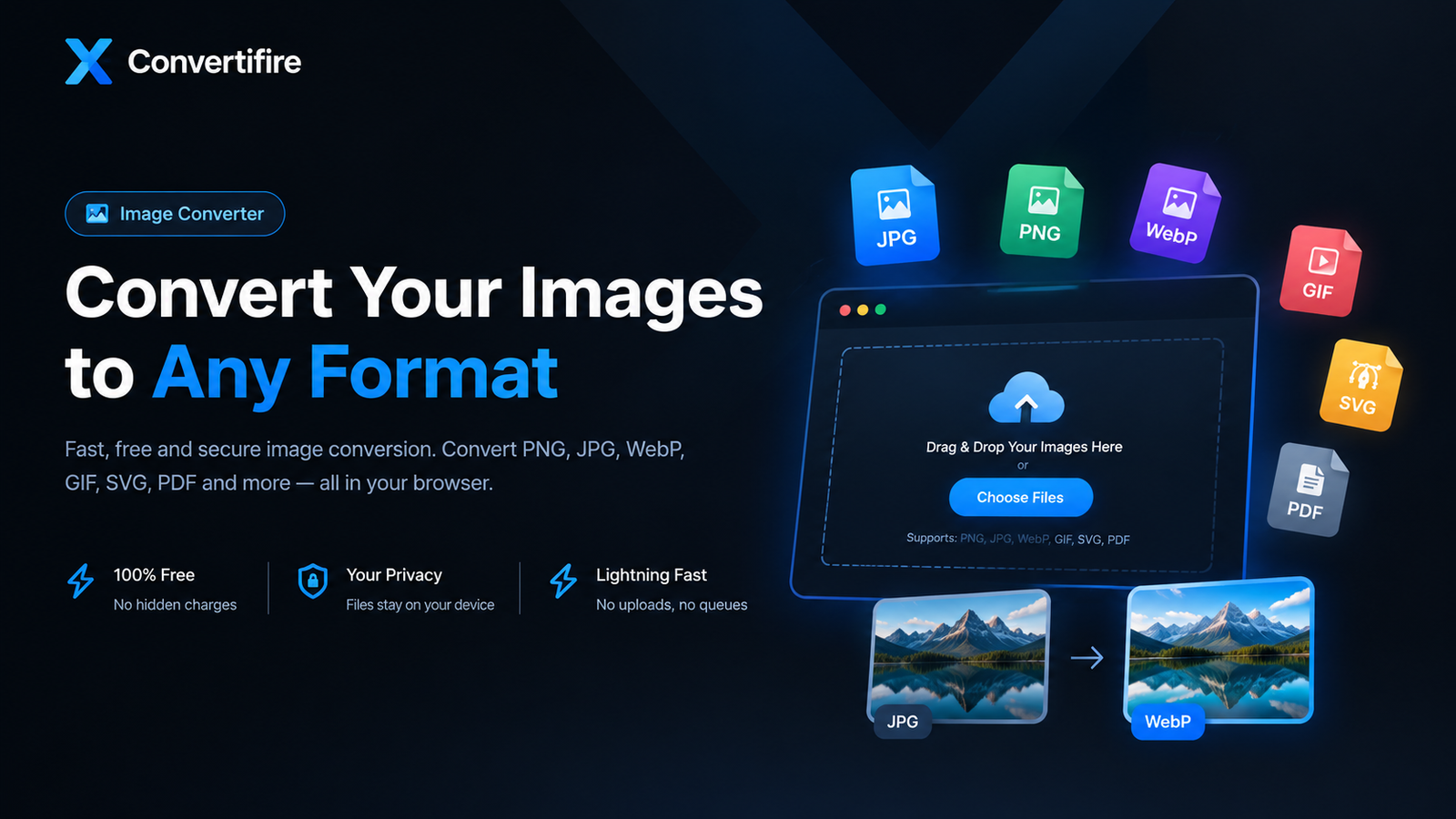
Convert images into JPG, PNG, WebP or a PDF with XConvertifire. Learn how to choose formats, follow simple conversion steps and avoid common mistakes.
Free Image Converter Online: Convert JPG, PNG, WebP & Make PDFs
Need a free image converter online to prepare a photo for a website, upload form, presentation, or personal project? Choosing the right file format can make an image easier to share and display. With XConvertifire's online image converter, you can select image files, choose a supported output format, and download the converted result.
The image converter processes selected images in your browser. You can create JPG, PNG, or WebP images, or make a PDF document from your images. The best option depends on whether you need transparent backgrounds, smaller file sizes, or a document that is easy to send.
Which image format should you choose?
Different formats serve different purposes. Before you convert, consider the destination for your file, image quality, transparency, and compatibility.
JPG and JPEG: A practical choice for photographs
JPG and JPEG refer to the same image format. JPEG compression is useful for photographs and other images with many colors, especially when you need broad compatibility. However, JPEG is lossy and does not support transparency. Converting a transparent PNG to JPG can replace transparent areas with a solid background, so check the result before sharing it.
PNG: Useful for screenshots, graphics, and transparency
PNG supports lossless compression and transparent pixels. It is often a good choice for screenshots, illustrations, diagrams, and images with sharp edges. A PNG file can be larger than a compressed photograph, so it is worth comparing formats rather than choosing PNG for every image.
WebP: A flexible format for websites
WebP supports lossy and lossless compression as well as transparency. It can be useful when preparing images for websites, but converting an image to WebP does not guarantee a smaller file in every case. Compare the appearance and file size of the result. Read Google's guide to WebP for more information.
GIF and SVG: Understand their differences
GIF is often used for simple animations. SVG is a vector format suited to icons, logos, and graphics that need to scale cleanly. They are different from ordinary photographic image formats. XConvertifire's current image converter should not be treated as a reliable animated GIF exporter, and SVG is not offered as an output format. Converting an animated image through a canvas-based tool may also lose its animation. For a broader comparison, see the MDN image format guide.
PDF: Create a document from images
PDF is a document format, not an ordinary image format. The converter can place selected images into a PDF, with a page for each image. It does not take an existing PDF as input or extract PDF pages into image files. If your goal is to share several pictures as a document, image-to-PDF output can be convenient.
How to convert images online in four steps
- Open the free image conversion tool and choose one or more image files from your device.
- Select a supported output format: JPG or JPEG for photos, PNG when transparency matters, WebP for web use, or PDF to create a document from images.
- Start the conversion and allow your browser to finish processing the selected files.
- Download the result and check that its format, appearance, and file size meet your needs. Multiple image outputs may download together in a ZIP file.
Practical image conversion examples
Convert PNG to JPG
If you have a PNG photograph and need a JPG for an upload form, select the PNG and choose JPG as the output. Be careful with transparent logos or graphics: JPG cannot retain transparent pixels. Keep the original PNG if you might need that transparency later.
Convert JPG to WebP
When preparing a photo for a website, you can convert the JPG into WebP and compare the result with the original. Review visible image quality as well as file size. Different photographs respond differently to compression, so use the format that best fits your publishing requirements.
Turn multiple images into a PDF
If you want to send several images in one document, select those images and choose PDF output. Review the resulting pages before sharing the document. This workflow creates a PDF from images; it is not a PDF-to-image conversion.
More ways to prepare your images
Format conversion may be only one step in getting an image ready. If your image has the wrong dimensions, try the online image resizer. To remove unwanted edges or adjust the composition, use the image cropper. If the file is larger than you need, explore the image compressor and compare its output with the original.
Keeping an untouched copy of the source is a sensible habit, especially when making several changes. Conversion may change compression, transparency, or animation depending on the file and output format.
Frequently asked questions
Is XConvertifire's image converter free to use?
The image converter is offered as a free online tool. You can select supported image files and choose an output format from the options available on the converter page.
Can I convert multiple images at once?
Yes. The image converter supports selecting multiple image files. Depending on the output format, it can deliver multiple image results together as a ZIP archive or create a PDF with separate pages.
Can I convert an existing PDF into JPG or PNG here?
No. On this specific tool, PDF is an output option for images, not an accepted PDF input. Do not upload a PDF expecting the image converter to extract its pages.
Does converting JPG to WebP always reduce the file size?
No. File size depends on the original image, dimensions, image details, and encoding. Always compare the output instead of assuming one format will be smaller.
Can I convert an animated GIF without losing animation?
Do not rely on the current converter for animated GIF output. Browser-based canvas conversion can produce a still image, and the GIF output option has not been verified to create a valid animated GIF. Keep your original animated file.
Are selected images processed on my device?
The converter's image-processing workflow uses browser-side file and canvas operations rather than sending the selected images to a server-side conversion endpoint. You should still use normal caution when working with sensitive files in any online application.
Convert your image with the format that fits
Whether you need JPG for a photo, PNG for a transparent graphic, WebP for a website, or a PDF made from images, the right format depends on your goal. Start with XConvertifire's free image converter online, check the downloaded result, and keep the original file in case you need to make changes later.